Video resolution checker for five platforms
Drop in one video. See its resolution, frame rate and length, and whether TikTok, Reels, Shorts, the App Store and Google Play accept it.
Free No signup Files stay on your device
- Fills TikTok, Reels, Shorts
- 9:16
- App Store, iPhone
- 886 × 1920
- Longest Short
- 3 min
Social media video sizes and specs
Every rule the checker uses, from each platform's own help pages. Checked 9 October 2026.
| Platform | Shape and size | Length | Frame rate |
|---|---|---|---|
| TikTok | 9:16, 360 to 4096 px | Up to 3 min | 23 to 60 fps |
| Instagram Reels | 1.91:1 to 9:16, 720 px or more | Up to 20 min | 30 fps or more |
| YouTube Shorts | Square or vertical, 1080 × 1920 | Up to 3 min | 24 to 60 fps |
| App Store preview | 886 × 1920 (iPhone) | 15 to 30 s | 30 fps at most |
| Google Play video | Portrait or landscape | First 30 s autoplay | As YouTube |
TikTok
- Shape recommended
- 9:16 vertical. 1:1 and 16:9 are accepted.
- Resolution required
- 360 to 4096 px on each side. At least 540 × 960 for promoted videos.
- Length required
- Up to 3 minutes for every account. Some accounts can post 5 or 10.
- Frame rate required
- 23 to 60 fps
- Codec recommended
- H.264. H.265, VP8 and VP9 are accepted.
- File required
- MP4, MOV or WebM, up to 4 GB. 500 MB for promoted videos.
- Audio
- No published rule
Source: TikTok for Developers, TikTok for Business
Instagram Reels
- Shape required
- Between 1.91:1 and 9:16
- Best shape recommended
- 9:16. Meta lists 1440 × 2560 for promoted Reels.
- Resolution recommended
- At least 720 px
- Length required
- Up to 20 minutes. Over 3 minutes is not shown to new audiences.
- Frame rate recommended
- At least 30 fps
- Codec recommended
- H.264, High Profile, progressive scan
- Audio recommended
- Optional. Stereo AAC, 128 kbps or more, 48 kHz.
Source: Instagram Help Centre, Meta specs guide
YouTube Shorts
- Shape required
- Square or vertical. Wider files become regular videos.
- Resolution recommended
- No fixed size. Google's template is 1080 × 1920.
- Length required
- Up to 3 minutes
- Frame rate recommended
- 24, 25, 30, 48, 50 or 60 fps
- Codec recommended
- MP4 with H.264, High Profile
- Audio recommended
- AAC-LC or Opus, stereo, 48 kHz
Source: YouTube Help, YouTube encoding settings
App Store preview
- Resolution required
- 886 × 1920 for current iPhones, 1200 × 1600 for iPads, 1920 × 1080 for Mac
- Length required
- 15 to 30 seconds
- Frame rate required
- 30 fps at most
- Codec required
- H.264 up to High Profile Level 4.0, or ProRes 422 HQ
- File required
- .mov, .m4v or .mp4, 500 MB at most
- Audio required
- Stereo AAC, 256 kbps, 44.1 or 48 kHz
Source: App Store Connect Help
Google Play video
- Format required
- A YouTube link, not a file
- YouTube settings required
- Public or unlisted, embeddable, not age restricted, monetization off
- Shape
- Portrait or landscape
- Length recommended
- Any. Only the first 30 seconds autoplay.
- Content recommended
- At least 80% showing the app in use
Source: Play Console Help
How to check a video's resolution
-
1
Drop the final export into the checker
Check the file you will post, not the project. A phone recording is fine too: rotation is read from the file, so a vertical clip shows as vertical.
-
2
Read the facts first
Resolution, aspect ratio, length, frame rate, codec, bitrate and audio. These are the numbers each platform judges.
-
3
Then read each platform line
Pass means every rule is met. Check means the platform only advises against something. Fail means a stated rule is broken.
-
4
No browser at hand?
On a Mac, select the file and choose Get Info. On Windows, open Properties, then Details. Both list the frame width and height.
How to fix the common failures
Wrong aspect ratio
Set the project to 1080 x 1920 before you edit, not after. A 16:9 file posted to TikTok or Reels gets bars, and on YouTube it becomes a regular video instead of a Short.
60 fps for the App Store
Apple allows 30 fps at most, and many phone recordings run at 60. Export at 30, or run it through the App Store preview converter, which also sets the size.
No audio track
Screen recordings from the Simulator have none. TikTok, Reels and Shorts still post them, silent. Apple lists stereo audio for previews, so add a silent track before you upload.
Too long
Shorts stop at 3 minutes and app previews at 30 seconds. Reels over 3 minutes reach only your followers. Cut to the first strong moment.
Too small
Instagram asks for 720 px and TikTok for 540 x 960 on promoted videos. Upscaling adds no detail, so export again from the source at 1080 x 1920.
HEVC or ProRes for the App Store
Apple takes H.264 up to High Profile Level 4.0, or ProRes 422 HQ in a .mov. HEVC from an iPhone camera does not qualify. Export again as H.264.
Size is right. Now check the framing
A file can pass every check and still hide its text under the buttons. These tools show where.
-
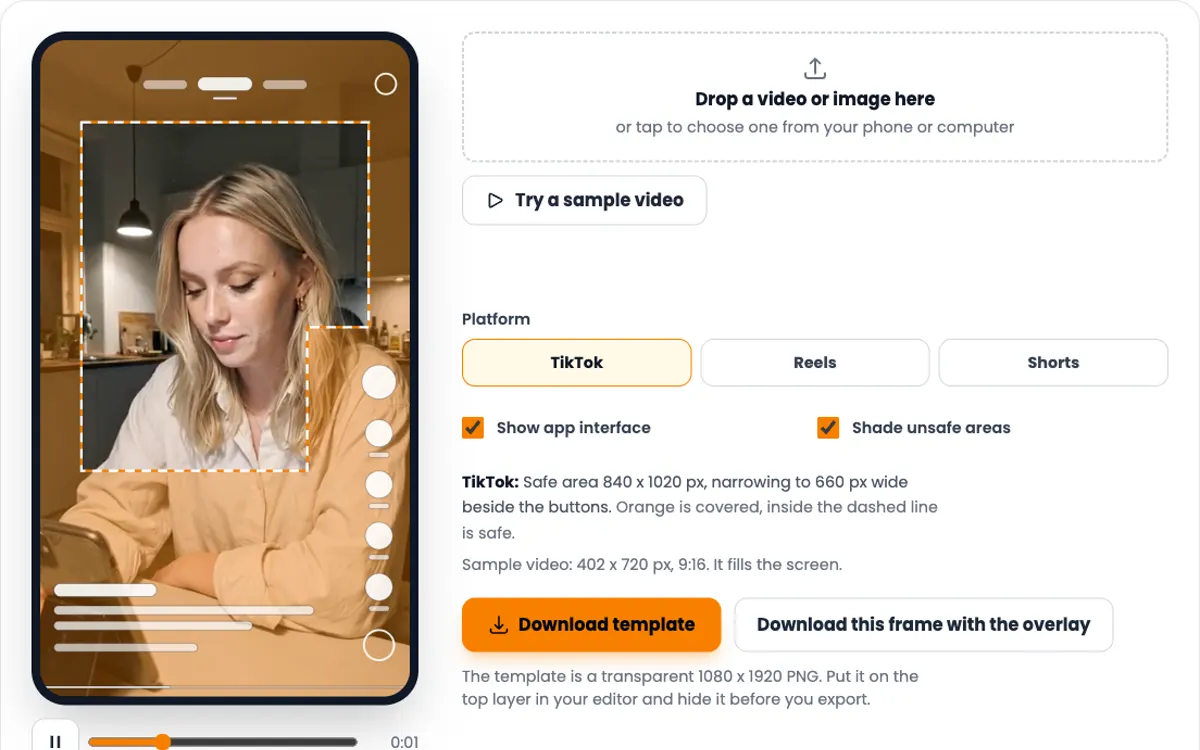
TikTok safe zone checker
See what the TikTok caption and button column cover.
-
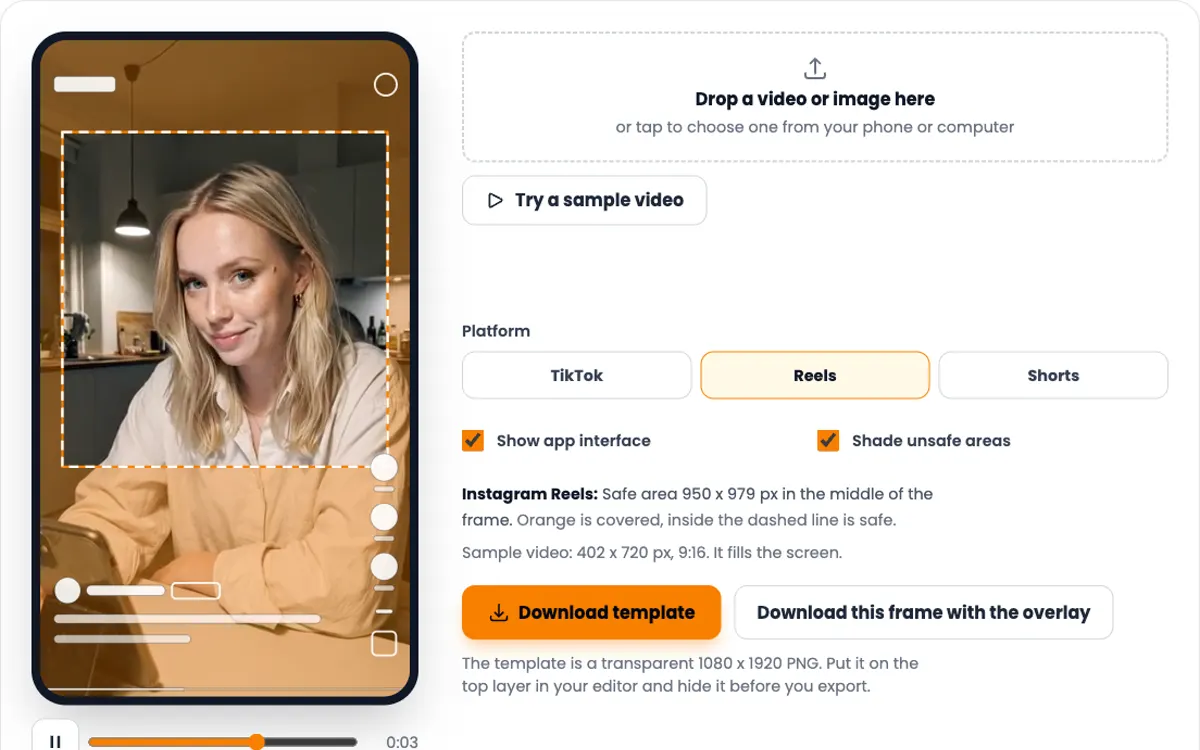
Instagram Reels safe zone template
Meta's 14% top, 35% bottom and 6% side margins, drawn on your video.
-
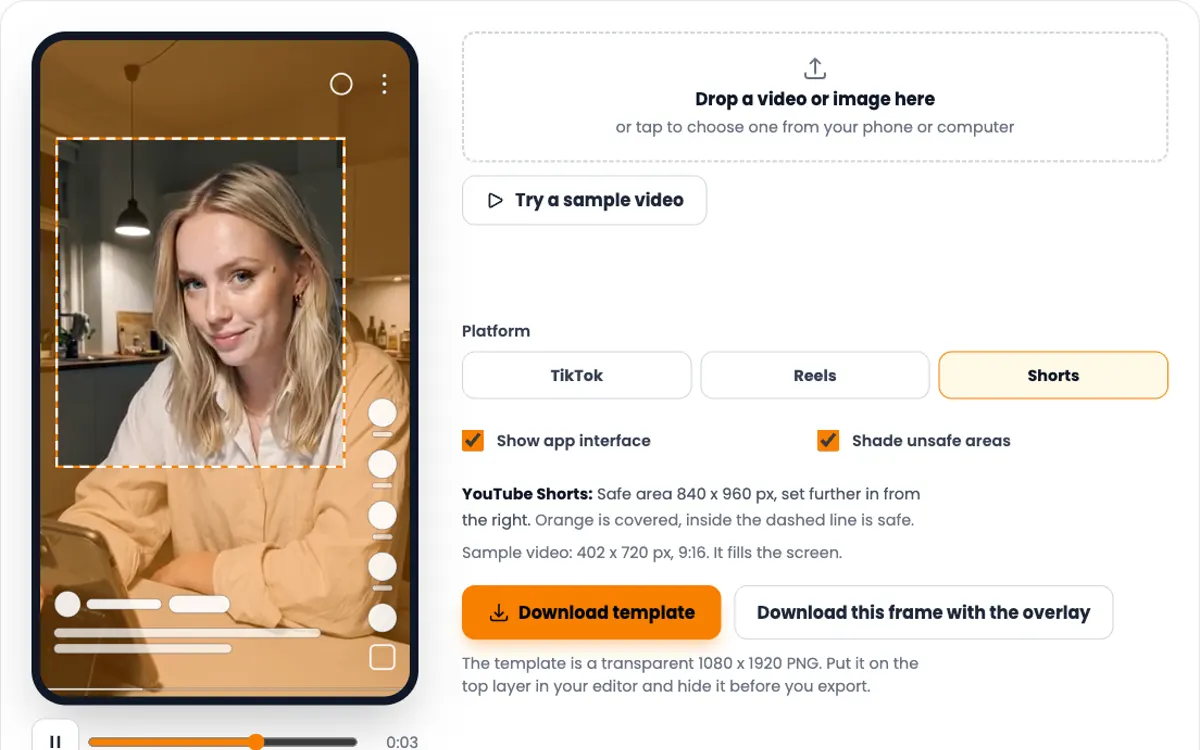
YouTube Shorts safe zone template
Google's 1080 x 1920 template, with the wide right margin.
-
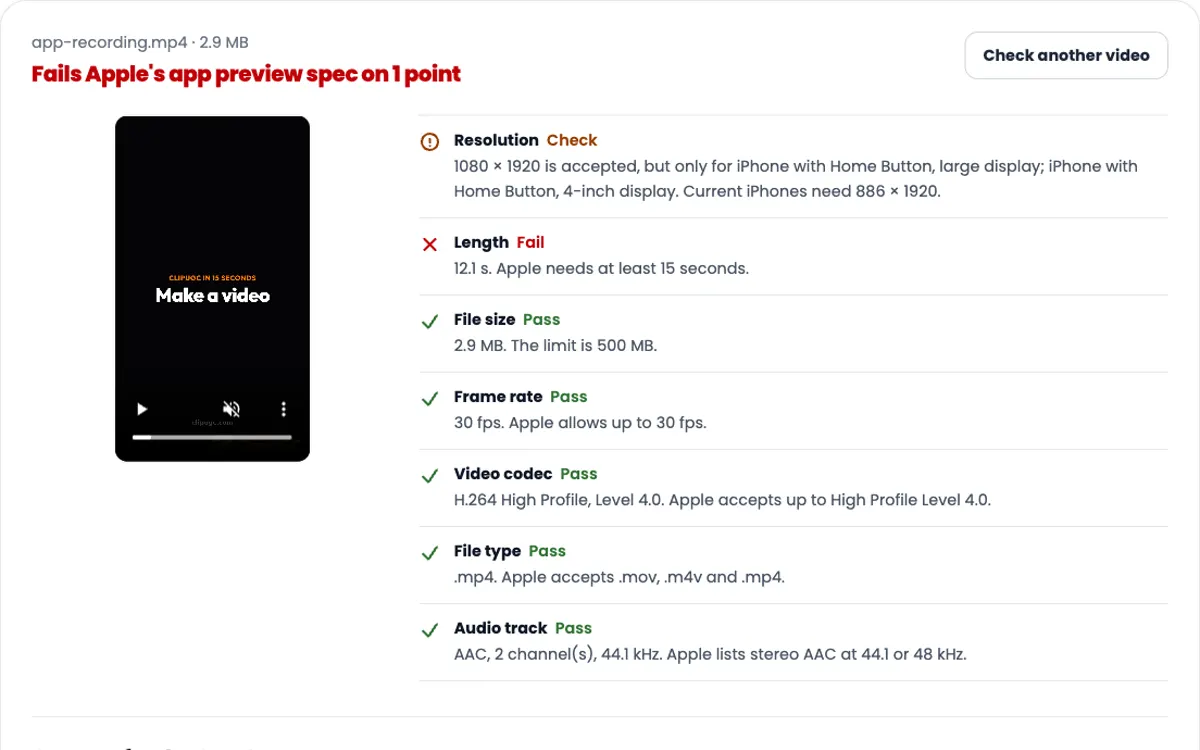
App Store preview video converter
Turns a failing file into an 886 x 1920, 30 fps preview with stereo audio.
Need the video itself?
ClipUGC makes vertical UGC videos for your app. An AI influencer says your hook, then your app footage plays. The result fits TikTok, Reels and Shorts.
Free credits. No card.
Ida, made with ClipUGC
More free tools
Questions people ask
Make it 9:16 vertical. TikTok accepts 360 to 4096 px on each side and asks for at least 540 x 960 for promoted videos, so a 1080 x 1920 export is safe. The frame rate has to be between 23 and 60 fps.
Use 9:16. Instagram asks for at least 720 px and 30 fps, and accepts shapes from 1.91:1 to 9:16. Meta lists 1440 x 2560 for promoted Reels, and 1080 x 1920 clears every minimum.
A Short must be square or vertical and 3 minutes or shorter. YouTube recommends MP4 with H.264, AAC or Opus audio at 48 kHz, and 24 to 60 fps. Google's Shorts template is 1080 x 1920.
Drop the file into the checker above. It shows the resolution, frame rate, length, codec and audio in a second. On a Mac you can also use Get Info, and on Windows Properties, then Details.
Apple is much stricter. An app preview must use an exact size such as 886 x 1920, last 15 to 30 seconds, run at 30 fps or less and carry a stereo audio track. The free App Store preview converter fixes all four.
No. Google Play takes a YouTube link. Upload the video to YouTube as public or unlisted, turn monetization off, and paste the link into Play Console.
No. The checker reads the file in your browser. The video never leaves your phone or computer.
Your video passed the check. Now make one worth posting
Create an AI influencer, give them your hook, and add your app footage. Free credits cover the first video.