App Store screenshot sizes and a free resizer
Apple requires 1206 × 2622 px for iPhone and 2064 × 2752 px for iPad apps; Google Play takes 320 to 3840 px, up to 2:1.
Free No signup Files stay on your device
- iPhone, required
- 1206 × 2622
- iPad 13 inch, required
- 2064 × 2752
- Google Play phone
- 1080 × 1920
1. Add your screenshots
Each image is checked against both stores as soon as you add it.
2. Pick the sizes you need
Choose single sizes ( picked)
Custom size (px)
3. Choose how it fits
Your resized screenshots
Files save one by one. Your browser may ask once to allow several downloads.
App Store screenshot sizes
Apple needs one iPhone set to publish: iPhone with Dynamic Island, medium display. That is 1206 × 2622 or 1179 × 2556 pixels in portrait. If your app runs on iPad, it also needs the 13 inch set, 2064 × 2752 or 2048 × 2732.
There is one catch. Apple marks Face ID, large display as required when the Dynamic Island, large display slot is empty. Upload 1320 × 2868 as well and both large slots are covered.
Every other size is optional. If your screens look the same on every iPhone, App Store Connect scales your largest set down for the smaller ones.
Rules for every size: 1 to 10 screenshots per device size, in .png, .jpg or .jpeg, with no alpha channel and no transparency. Apple names iPhone slots by display type now. The inch sizes below are the screens each pixel size comes from.
iPhone
| Display | Portrait (px) | Landscape (px) | Status |
|---|---|---|---|
| Dynamic Island, medium display 6.3" and 6.1" iPhone 18 Pro, 17 Pro, 17, 16 Pro, 16, 15 Pro, 15, 14 Pro | 1206 × 2622 1179 × 2556 |
2622 × 1206 2556 × 1179 |
Required |
| Dynamic Island, large display 6.9", 6.7" and 6.5" iPhone Air, 18 Pro Max, 17 Pro Max, 16 Pro Max, 16 Plus, 15 Pro Max, 15 Plus, 14 Pro Max | 1320 × 2868 1290 × 2796 1260 × 2736 |
2868 × 1320 2796 × 1290 2736 × 1260 |
Recommended. Filling it covers the Face ID large requirement. |
| Face ID, large display 6.7" and 6.5" iPhone 14 Plus, 13 Pro Max, 12 Pro Max, 11 Pro Max, 11, XS Max, XR | 1284 × 2778 1242 × 2688 |
2778 × 1284 2688 × 1242 |
Required if Dynamic Island large is empty |
| Face ID, medium display 6.1", 5.8" and 5.4" iPhone 17e, 16e, 14, 13 Pro, 13, 13 mini, 12 Pro, 12, 12 mini, 11 Pro, XS, X | 1170 × 2532 1125 × 2436 1080 × 2340 |
2532 × 1170 2436 × 1125 2340 × 1080 |
Optional. Scaled from Dynamic Island medium. |
| Home Button, large display 5.5" iPhone 8 Plus, 7 Plus, 6S Plus, 6 Plus | 1242 × 2208 | 2208 × 1242 | Optional. Scaled from Face ID medium. |
| Home Button, medium display 4.7" iPhone SE (3rd and 2nd generation), 8, 7, 6S, 6 | 750 × 1334 | 1334 × 750 | Optional. Scaled from Home Button large. |
| Home Button, 4" display 4" iPhone SE (1st generation), 5S, 5C, 5 | 640 × 1136 640 × 1096 |
1136 × 640 1136 × 600 |
Optional. Scaled from Home Button medium. |
| Home Button, 3.5" display 3.5" iPhone 4S, 4 | 640 × 960 640 × 920 |
960 × 640 960 × 600 |
Optional. Scaled from Home Button 4". |
| iPhone Duo outer and inner display iPhone Duo | 1398 × 2034 2007 × 2853 |
2034 × 1398 2853 × 2007 |
Required from April 2027 for apps built with the iOS 27.1 SDK or later |
iPad
| Display | Portrait (px) | Landscape (px) | Status |
|---|---|---|---|
| 13" display iPad Pro (M5, M4), iPad Pro 12.9" (6th to 3rd and 1st generation), iPad Air (M4, M3, M2) | 2064 × 2752 2048 × 2732 |
2752 × 2064 2732 × 2048 |
Required if your app runs on iPad |
| 12.9" display iPad Pro (2nd generation) | 2048 × 2732 | 2732 × 2048 | Optional. Scaled from 13". |
| 11" display iPad Pro (M5, M4, 4th to 1st generation), iPad Air (M4 to M2, 5th, 4th), iPad (A16, 10th), iPad mini (A17 Pro, 6th) | 1668 × 2420 1668 × 2388 1640 × 2360 1488 × 2266 |
2420 × 1668 2388 × 1668 2360 × 1640 2266 × 1488 |
Optional. Scaled from 13". |
| 10.5" display iPad Pro, iPad Air (3rd generation), iPad (9th to 7th generation) | 1668 × 2224 | 2224 × 1668 | Optional. Scaled from 12.9". |
| 9.7" display iPad Pro, iPad Air, iPad Air 2, iPad (6th to 3rd generation), iPad mini (5th to 2nd) | 1536 × 2048 1536 × 2008 768 × 1024 768 × 1004 |
2048 × 1536 2048 × 1496 1024 × 768 1024 × 748 |
Optional. Scaled from 10.5". |
The 9.7 inch sizes come with and without the status bar: 1536 × 2048 with it, 1536 × 2008 without, and the same at half size.
Mac, Apple TV, Vision Pro and Apple Watch
| Platform | Accepted sizes (px) | Notes |
|---|---|---|
| Mac | 1280 × 800, 1440 × 900, 2560 × 1600, 2880 × 1800 | 16:10. Required for Mac apps. |
| Apple TV | 1920 × 1080, 3840 × 2160 | Required for Apple TV apps. |
| Apple Vision Pro | 3840 × 2160 | Required for Vision Pro apps. |
| Apple Watch | 422 × 514, 410 × 502, 416 × 496, 396 × 484, 368 × 448, 312 × 390 | Required for Watch apps. Use one size across all languages. |
Google Play screenshot sizes
Google Play is looser than Apple. It takes any JPEG or 24-bit PNG from 320 to 3840 pixels per side, as long as the long side is no more than twice the short side. No alpha channel.
The size that matters is 1080 × 1920. Google only shows screenshots in its larger recommendation spots when an app has at least 4 of them at 9:16, 1080 × 1920 or bigger, or 16:9, 1920 × 1080 or bigger.
Your iPhone set will not pass as is. 1320 × 2868 is 2.17 times taller than wide, over the limit of 2. Resize it to 1080 × 1920 first.
| Asset | Size (px) | Format and count |
|---|---|---|
| Phone screenshots | Each side 320 to 3840 px. The long side can be at most twice the short side. | JPEG or 24-bit PNG, no alpha. Up to 8. At least 2 across all device types to publish. |
| For Google Play recommendations | 9:16 at 1080 × 1920 or larger, or 16:9 at 1920 × 1080 or larger | Apps need at least 4 screenshots at this size. Games need at least 3. |
| Tablets (7" and 10") and Chromebooks | 9:16 or 16:9. Google says 1,080 to 7,680 px for large screens, but the general cap is 3,840 px. | At least 4 recommended, up to 8. Keep extra text off, it can get cut. |
| Wear OS | 1:1, at least 384 × 384 | App interface only. No device frames, no transparent backgrounds. |
| Android TV | Same general limits | At least 1 to publish on TV, plus a TV banner image. |
| Android Automotive OS | 800 × 1280 portrait and 1024 × 768 landscape | If you provide them: at least 2 of each. |
| Android XR | 8:5, 3840 × 2400 recommended, 1920 × 1200 minimum | PNG or JPEG, up to 8 MB each, 4 to 8 screenshots. |
| Feature graphic | 1024 × 500 | JPEG or 24-bit PNG, no alpha. Required to publish. |
| App icon | 512 × 512 | 32-bit PNG with alpha, up to 1024 KB. Required to publish. |
Google lists up to 8 screenshots for each device type: phone, 7 inch tablet, 10 inch tablet, Chromebook, TV, Wear OS, cars and XR headsets.
How to resize screenshots for both stores
-
Add your screenshots
Drop them in the tool above or pick them from your camera roll. Each one is checked right away against both stores.
-
Pick the sizes
"App Store required" gives you the large iPhone, the medium iPhone and the 13 inch iPad. Add "Google Play phone" for 1080 × 1920.
-
Choose how it fits
Fit with background keeps the whole screen and pads the rest with a color you pick. Fill and crop fills the frame and trims the edges.
-
Resize and download
Every file comes out as a PNG with no alpha channel, named with its size. Upload each one to its slot in App Store Connect or Play Console.
Screenshot tips that move installs
The first three decide
Apple shows the first one to three screenshots in search results when there is no app preview. Google asks you to put real app screens in the first three. Lead with your best moment.
Caption the benefit
Write what people get, not what the screen is. Keep it short and large. Google says taglines should cover no more than 20% of the image.
Show the app in use
Use real screens from your app. Google does not want fingers tapping a phone unless the app is used off the device.
Skip the banned words
Google rejects words like "Best", "#1", "Top", "New" or "Sale" on screenshots, and calls to action like "Download now".
Keep it current
Google asks you to avoid taglines that date quickly, and to swap seasonal screenshots in and out on time.
Translate the captions
Both stores take a separate set per language, and Google asks you to localize text on your graphics for each market.
The rest of your store listing
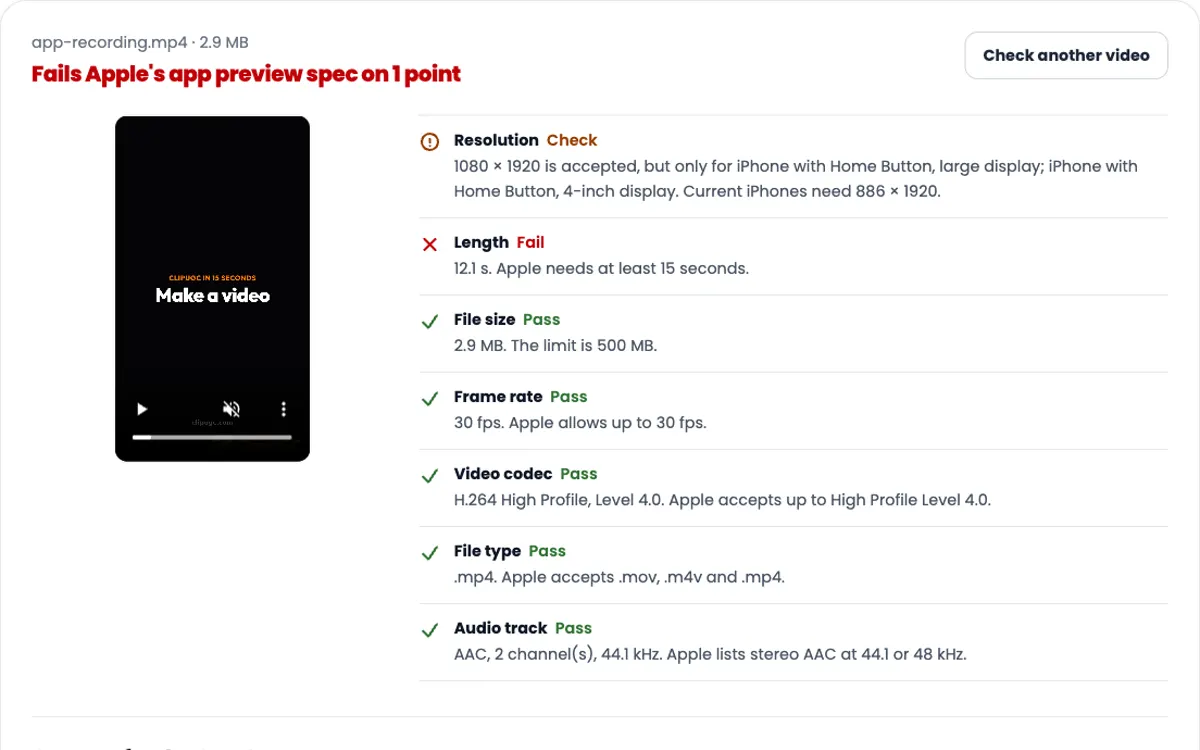
- App Store preview video specs: the video that plays before your screenshots.
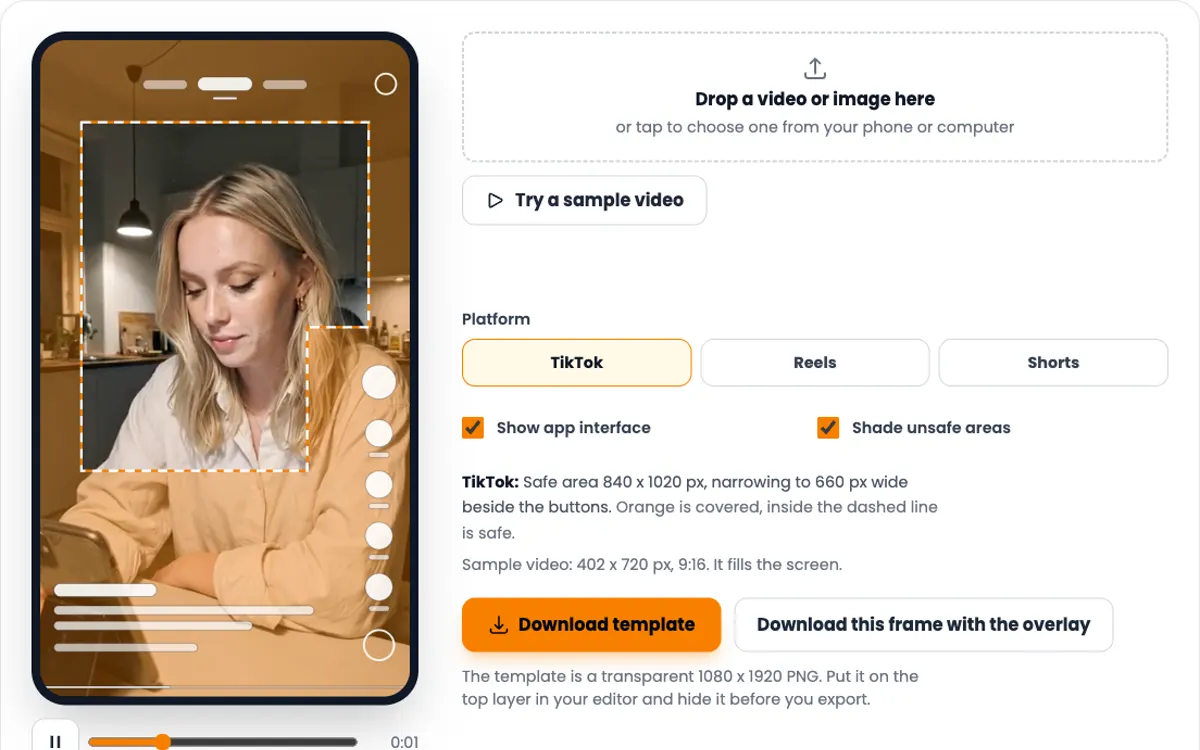
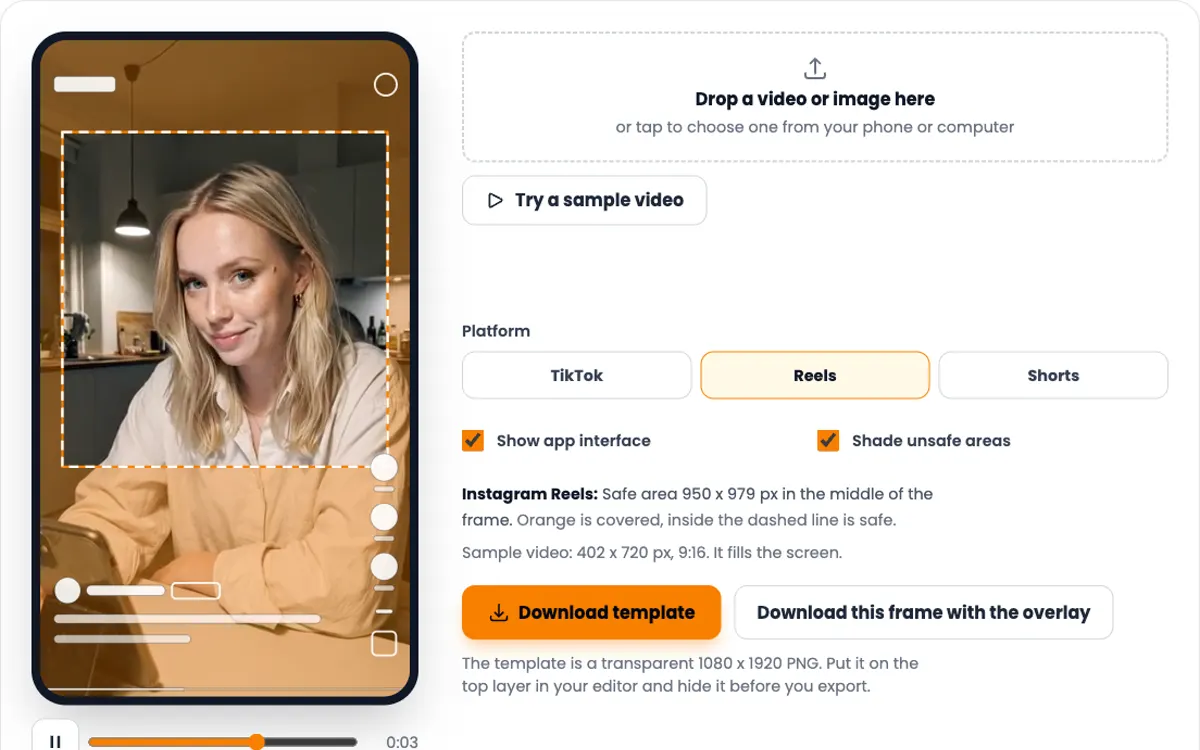
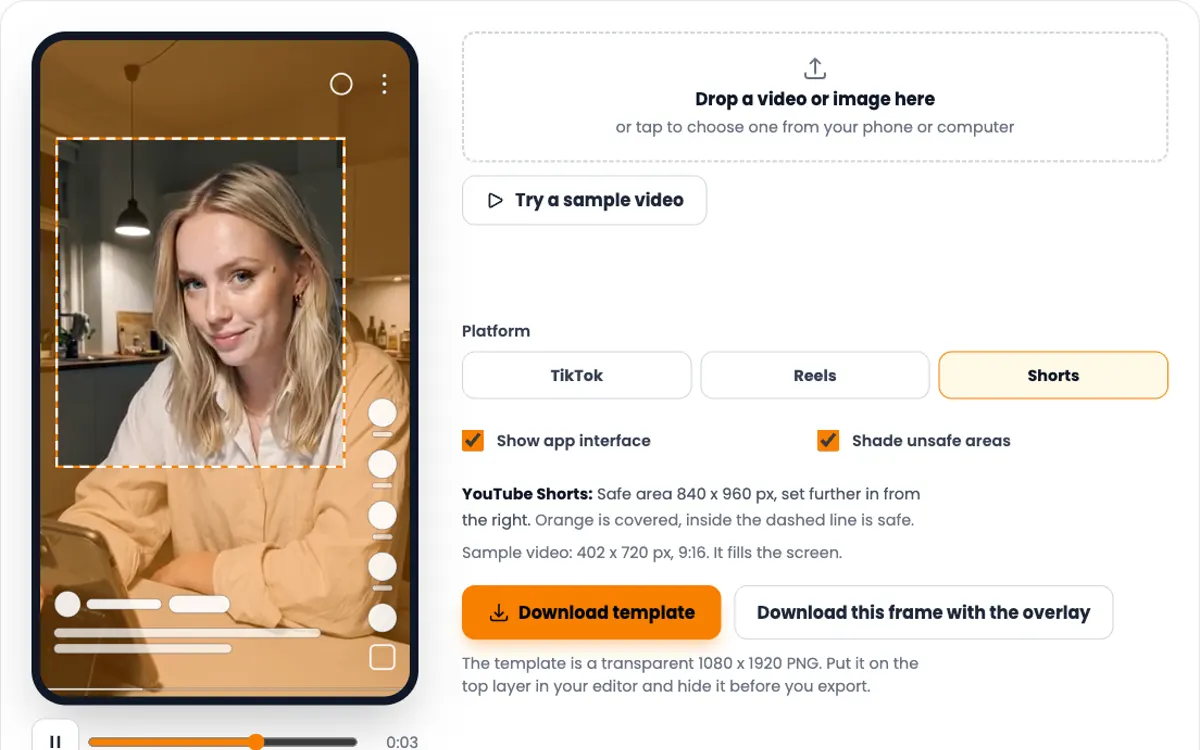
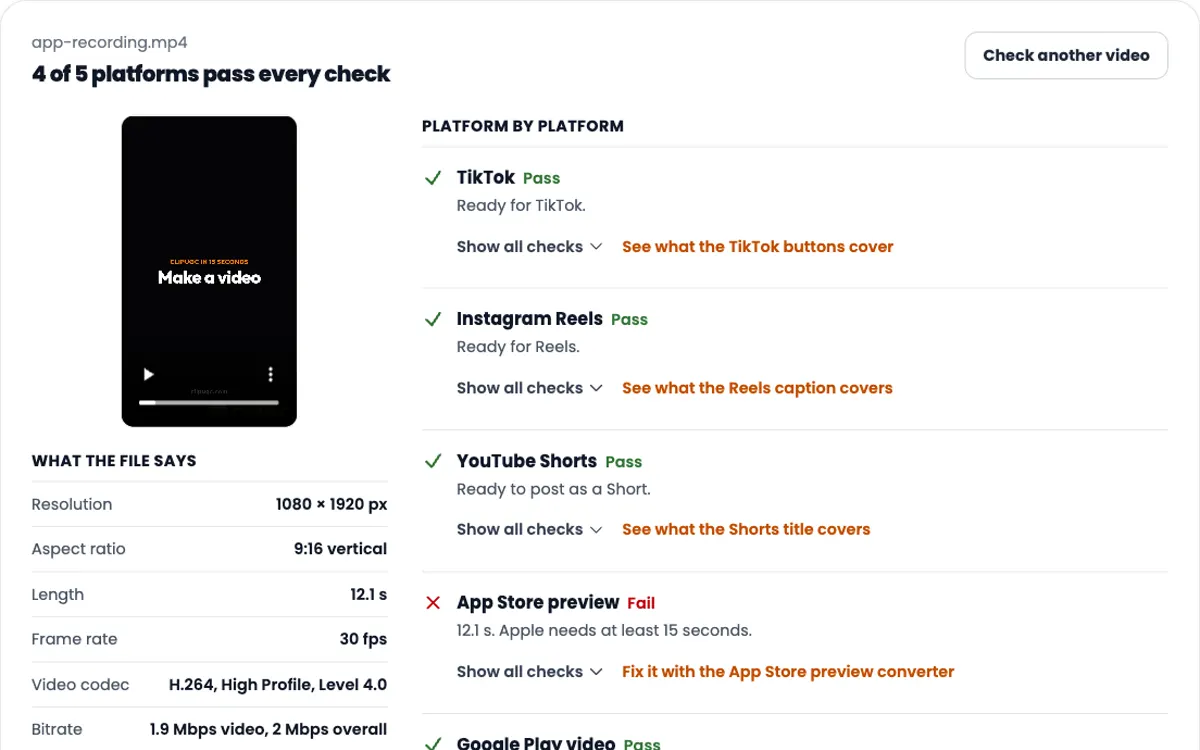
- TikTok safe zone checker: keep text clear of the buttons when you post app videos.
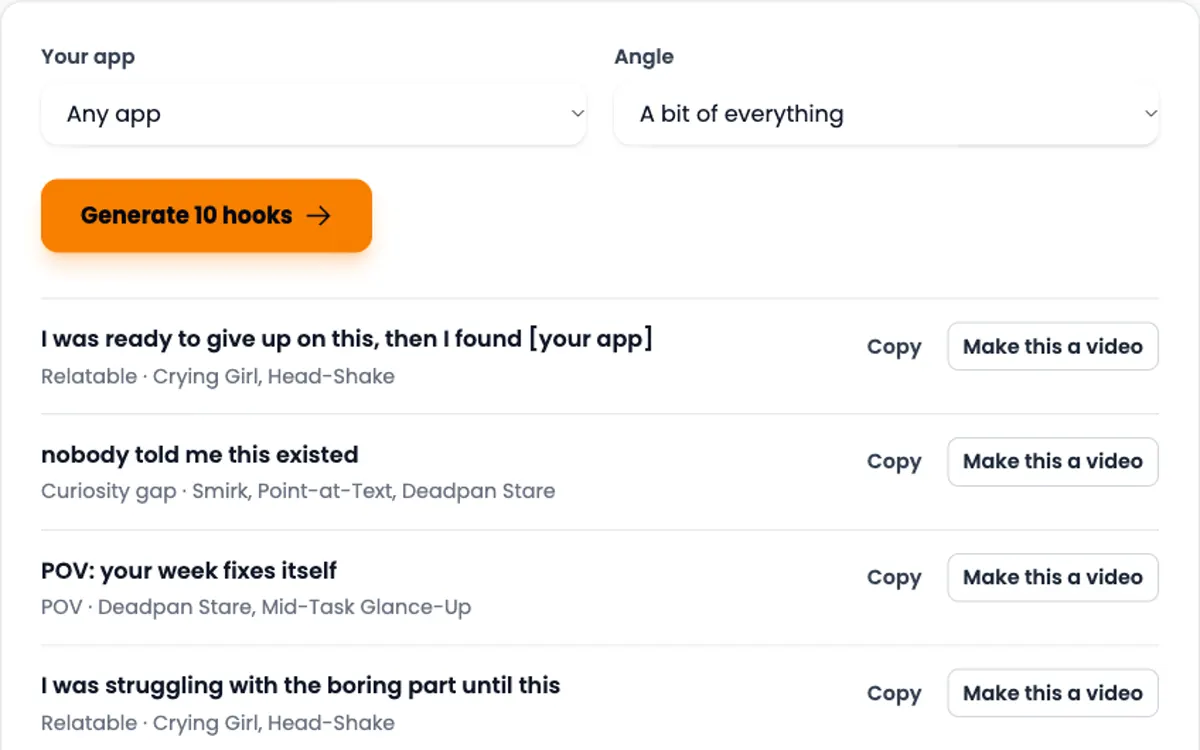
- UGC hook generator: first lines for short videos about your app.
Need the video itself?
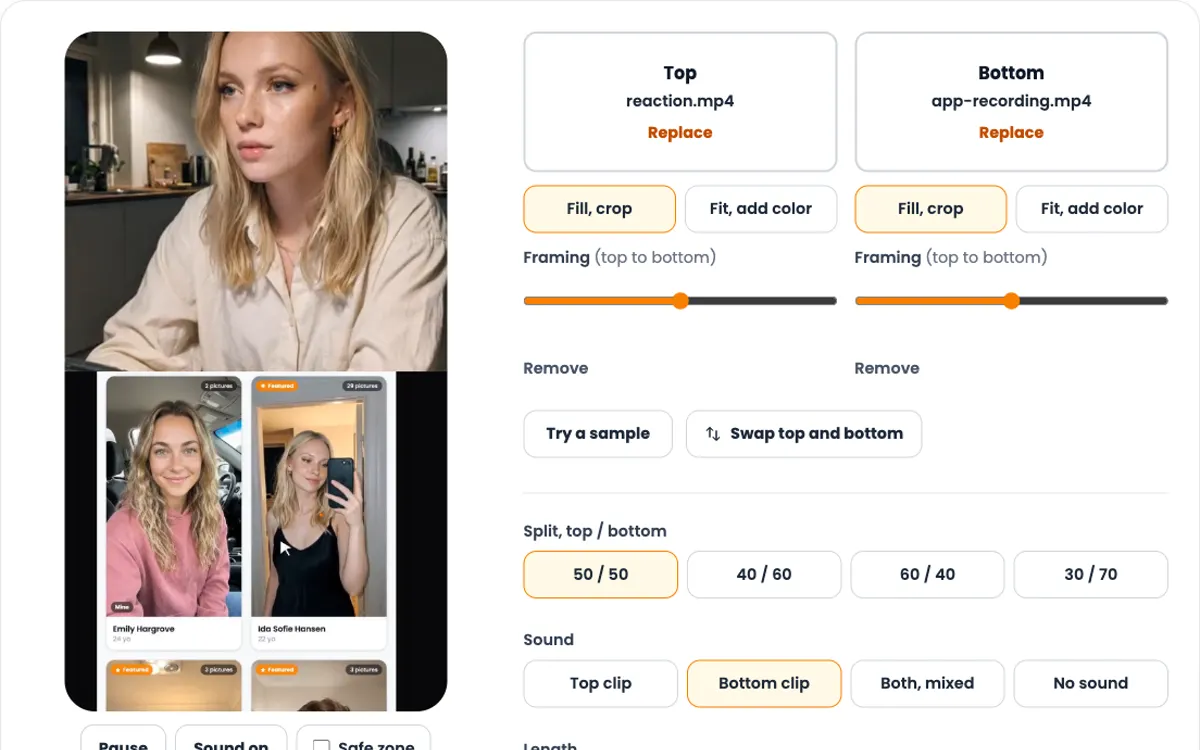
ClipUGC makes vertical UGC videos for your app. An AI influencer says your hook, then your app footage plays. The result fits TikTok, Reels and Shorts.
Free credits. No card.
Ida, made with ClipUGC
More free tools
Questions people ask
Apple requires one iPhone set at 1206 × 2622 or 1179 × 2556 pixels (iPhone with Dynamic Island, medium display). If your app runs on iPad, add 2064 × 2752 or 2048 × 2732. Upload 1320 × 2868 too, so the large iPhone slot is filled.
No. If your app looks the same across sizes, upload the largest required size and App Store Connect scales it down for smaller iPhones. Upload separate sets only when a device needs its own layout.
Any JPEG or 24-bit PNG from 320 to 3840 pixels per side, with the long side no more than twice the short side. For recommendation spots, use 1080 × 1920 in portrait or 1920 × 1080 in landscape, at least 4 of them.
No. Apple says images cannot include alpha channels or transparencies, and Google Play asks for JPEG or 24-bit PNG with no alpha. The resizer on this page always exports a PNG with no alpha channel.
Apple: 1 to 10 per device size. Google Play: up to 8 per device type, at least 2 to publish, and at least 4 for apps that want to appear in recommendation spots.
Not as they are. 1320 × 2868 is 2.17 times taller than it is wide, and Google Play rejects anything over 2. Resize to 1080 × 1920 with the background option to keep the whole screen.
No. Images are decoded, resized and saved inside your browser. Nothing is sent to a server.
Screenshots sorted. Now make a video worth watching
Create an AI influencer, give them your hook, and add your app footage. Free credits cover the first video.